



























- Description
- Minimum Requirements
- Specifications
- Additional information
- Reviews
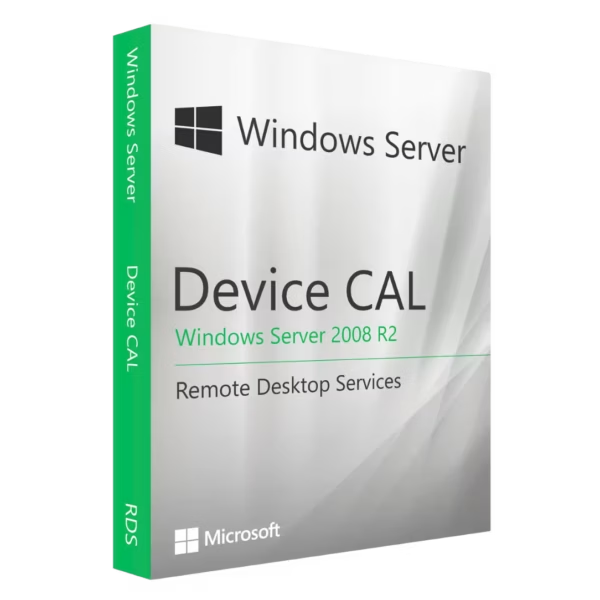
Windows Server 2008 R2 RDS Device CAL gives one authorized device access to Remote Desktop Services in a Windows Server 2008 R2 environment. Therefore, it is a practical choice for businesses that use shared workstations, fixed terminals, and computers across multiple employee shifts.
You receive instant digital delivery, lifetime usage, and no subscription fees. In addition, the device-based model helps businesses manage RDS access efficiently when several employees share the same workstation.
Overview of Windows Server 2008 R2 RDS Device CAL
- Platform: Windows Server
- Edition: Remote Desktop Services – Device CAL
- License Type: Retail
- Devices: 1 device
- License Duration: Lifetime
- Activation Method: Online activation
- Delivery: Instant digital delivery via email
- Support: Email and remote assistance
- Language Support: Multi-language
- Compliance: Genuine software licenses sourced through compliant distribution channels in line with EU. laws (EU Directive 2009/24/EC) and industry standards
Key Features
- Device-based RDS access: the Device CAL model links Remote Desktop access to one workstation. Therefore, several employees can use the same authorized computer at different times.
- Ideal for shared workstations: one device can serve different employees across several shifts. As a result, this model works well for reception desks, warehouses, laboratories, retail locations, and production areas.
- Centralized Remote Desktop sessions: Windows Server hosts remote sessions in one central environment. Therefore, IT teams can manage important business resources more efficiently.
- Remote application access: Remote Desktop Services delivers business applications from the server to the authorized device. Consequently, IT teams can reduce repetitive software administration on individual workstations.
- Efficient for rotating staff: several employees can use one terminal during different working periods. For this reason, businesses with shift-based teams can manage access more effectively.
- Centralized administration: IT teams can control RDS settings and sessions through the server infrastructure. In addition, centralized management simplifies maintenance and support.
- Suitable for Windows Server 2008 R2 environments: the product supports businesses that maintain this established server generation. Therefore, organizations can match RDS access to their existing infrastructure.
- One-time purchase: you pay once and avoid recurring subscription charges. After successful activation, you can continue using the product for the lifetime of the intended environment.
Main Features Explained
Device-Based Remote Desktop Access
The Device CAL model gives Remote Desktop Services access to one specific workstation. Therefore, different employees can use that device to connect to the remote environment.
This approach works especially well when a business has fewer shared computers than employees. For example, one fixed terminal can support several staff members across different shifts.
Centralized Remote Desktop Sessions
Remote Desktop Services runs Windows sessions through the server environment. Authorized devices then connect to those centrally managed sessions.
As a result, IT teams can keep important resources in one location. Moreover, they can manage applications and settings more consistently across shared workstations.
Remote Access to Business Applications
Remote Desktop Services delivers applications directly from the server. Therefore, employees can use essential business tools from the authorized workstation.
This approach suits accounting systems, management tools, and internal business applications. In addition, centralized delivery can simplify software administration.
Shared Workstation Management
A Device CAL works well when several people use the same workstation. For instance, employees on different shifts can share one fixed terminal.
Therefore, this model suits warehouses, reception areas, call centers, laboratories, retail environments, and production facilities.
RDS CALs and Windows Server Access
RDS CALs cover access to Remote Desktop Services. However, they do not replace Windows Server itself or standard Windows Server access rights.
Therefore, organizations should review their complete server access requirements before deployment.
Why Choose Windows Server 2008 R2 RDS Device CAL?
Ideal for Shared Computers and Fixed Terminals
Windows Server 2008 R2 RDS Device CAL works best when several employees share the same computer or terminal. Because the model follows the device, businesses can organize RDS access around workstations rather than individual users.
Therefore, it provides a practical option for fixed terminals and shift-based workplaces. In addition, it can simplify access planning when a company has more employees than shared computers.
Practical for Established Windows Server 2008 R2 Environments
Some organizations still use Windows Server 2008 R2 because existing applications or legacy systems depend on it. Therefore, choosing the matching RDS access model can help maintain a consistent infrastructure.
You can explore our Windows Server 2008 R2 RDS solutions to compare the available access options for your environment.
Windows Server 2008 R2 RDS Device CAL vs Alternatives
Device CAL vs User CAL
Device CAL follows the workstation. Therefore, it usually offers the better choice when several employees share the same computer.
In contrast, Windows Server 2008 R2 RDS User CAL follows the individual person. As a result, the User CAL model better suits employees who regularly work from several devices.
Windows Server 2008 R2 RDS Device CAL vs Windows Server 2012 R2 RDS Device CAL
Windows Server 2008 R2 RDS Device CAL suits RDS environments that run on the Windows Server 2008 R2 generation. Therefore, choose it when your existing Remote Desktop infrastructure uses Windows Server 2008 R2.
However, if your environment runs on a later server generation, consider Windows Server 2012 R2 RDS Device CAL instead.
System Compatibility
Windows Server 2008 R2
Windows Server 2008 R2 RDS Device CAL suits Remote Desktop Services environments based on Windows Server 2008 R2. Therefore, confirm your server version before activation.
In addition, check your existing RDS roles and licensing configuration before deployment.
Remote Desktop Services Roles
Your server must include the Remote Desktop Services roles that your deployment requires. Moreover, you must configure the Remote Desktop Licensing server correctly.
As a result, the RDS environment can manage the installed CALs correctly.
Per Device Licensing Mode
Configure the Remote Desktop Session Host to use Per Device licensing. This setting matches the device-based access model.
In addition, Per Device mode works well for shared workstations. Therefore, check this setting before you complete deployment.
RDS CALs and Standard Windows Server CALs
RDS CALs cover Remote Desktop Services access. However, standard Windows Server CALs cover different server access requirements.
Therefore, one type does not automatically replace the other. Review both requirements before you configure your environment.
What Does Retail License Type Mean?
Single Activation
The supplied Retail model supports one activation in the designated environment. Therefore, confirm the correct RDS server configuration before activation.
After activation, you cannot transfer it to another installation. Likewise, you cannot reuse it for a second activation.
Lifetime Usage
After successful activation, you can use the product for the lifetime of the intended environment. Therefore, you do not need annual renewals.
In addition, the product has no monthly subscription fee.
One-Time Purchase
You purchase the product once. As a result, you avoid recurring renewal charges.
Therefore, businesses can plan long-term RDS costs more easily.
Transfer and Reuse
You cannot transfer the supplied Retail model after activation. Likewise, you cannot reuse it if you lose or replace the original configuration.
Therefore, verify the Remote Desktop Licensing server before activation. In addition, make sure you use the correct RDS environment.
For any Microsoft components required for deployment, use the appropriate official Microsoft channels.
Installation & Activation
- 1. Configure Remote Desktop Services: first, make sure Windows Server 2008 R2 includes the RDS roles required for your deployment.
- 2. Open Remote Desktop Licensing Manager: next, launch the management tool for Remote Desktop Services licensing.
- 3. Activate the license server: then, activate the Remote Desktop license server if you have not already done so.
- 4. Install the CALs: afterward, select Install Licenses and follow the information supplied after purchase.
- 5. Select Per Device mode: next, configure the Remote Desktop Session Host for device-based licensing.
- 6. Verify the setup: finally, confirm that the RDS environment recognizes the licensing server correctly.
Why Buy From Us?
Digital License offers a fast and secure purchasing process. In addition, our support team can help you with configuration and activation when needed.
- Genuine licenses: we source our products through compliant distribution channels.
- Instant digital delivery: we send the required product information quickly by email.
- Secure payment: we use protected payment methods for safer transactions.
- Professional support: our team provides email and remote assistance when needed.
- EU compliance: we supply our products in line with EU Directive 2009/24/EC and relevant industry standards.
Digital License Is a Verified Microsoft Partner
Digital License is an official Microsoft Partner (ID: 7033487), recognized for delivering genuine software licenses and verified solutions across Europe. You can verify our partnership directly on the Microsoft Partner Directory. This ensures every license you purchase is authentic, secure, and fully compliant with Microsoft standards and applicable EU. laws (EU Directive 2009/24/EC) and industry standards.
Frequently Asked Questions
Purchase and Usage
What is Windows Server 2008 R2 RDS Device CAL used for?
It gives one device access to Remote Desktop Services in a properly configured Windows Server 2008 R2 environment. Therefore, it works well for shared computers and fixed terminals.
When should I choose a Device CAL?
Choose a Device CAL when several employees share the same computer. For example, it suits shift-based teams that use a limited number of fixed workstations.
How is the product delivered?
We deliver the product digitally by email after purchase. Therefore, you can receive the required information without waiting for physical shipping.
Activation and Transfer
How do I activate Windows Server 2008 R2 RDS Device CAL?
First, open Remote Desktop Licensing Manager and install the CALs. Then, configure the Remote Desktop environment to use Per Device licensing mode.
Does it require a subscription?
No. You make a one-time purchase. After successful activation, you can continue using it for the lifetime of the intended environment.
Can I transfer it after activation?
No. The supplied Retail model allows one activation only. Therefore, you cannot transfer or reuse it for another activation.
Compatibility and Compliance
Can multiple users share the same authorized device?
Yes. The Device CAL model lets different users access Remote Desktop Services from the same authorized workstation. Therefore, it suits shared terminals and rotating teams.
What is the difference between Device CAL and User CAL?
Device CAL follows the workstation, while User CAL follows the person. Therefore, choose Device CAL for shared computers and User CAL when one employee uses several devices.
Do RDS CALs replace standard Windows Server CALs?
No. RDS CALs cover Remote Desktop Services access. However, standard Windows Server access rights may still apply separately.
Is the product compliant with EU law?
Yes. We source software licenses through compliant distribution channels in line with applicable EU legislation and industry standards.

| Component | Requirement |
| License Type | 20 Device CALs (Client Access Licenses) for Remote Desktop Services (RDS) on Windows Server 2008 R2 |
| Compatibility | Compatible with Windows Server 2008 R2 Datacenter, Enterprise, Standard, and Foundation editions |
| Access Type | Device CALs allow multiple users to access Remote Desktop sessions from one licensed device |
| Activation | Requires activation through a local Remote Desktop Licensing Server |
| Network Requirements | Stable network connection required for RDS session management and license verification |
| Supported Clients | Windows, macOS, Linux, iOS, and Android using Microsoft Remote Desktop applications |
| Specification | Detail |
|---|---|
| Activation | Single PC (one-time activation) |
| License validity | Lifetime (does not expire after activation) |
| Delivery method | By email within 15 minutes |
| Languages | Multilingual |
Additional information
| Cal | 5, 10, 20 |
|---|

1 – Buy
Shop securely with SSL encryption.

2 – Receive
You will receive the license key and download link.

3 – Download
Download and install the software.

4 – Activate
Enter the license key to the software.


Windows Server 2012 R2 Essentials



Windows Server 2022 Datacenter
